Quick start - How to configure the measurement in the road section?
The following document is a short introduction to the AITracker GUI program on the example of configuring traffic on a two-way road. The sample is also available with the AITracker GUI.
Opening a location and selecting
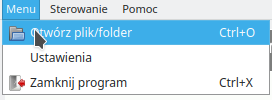
Select Menu->Open file/folder.
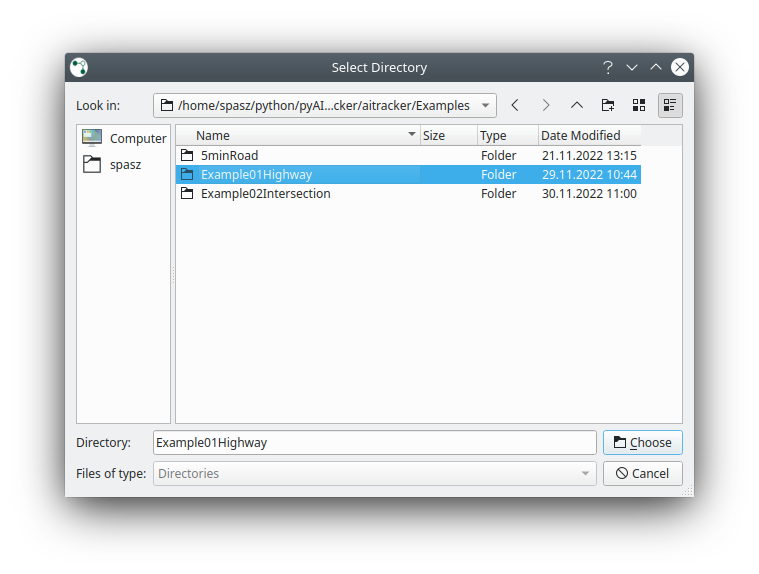
Point to the entire movie folder. In our case Example01Highway. After loading the location, you can select it by clicking its name in the "Locations" tab.
Relationship design
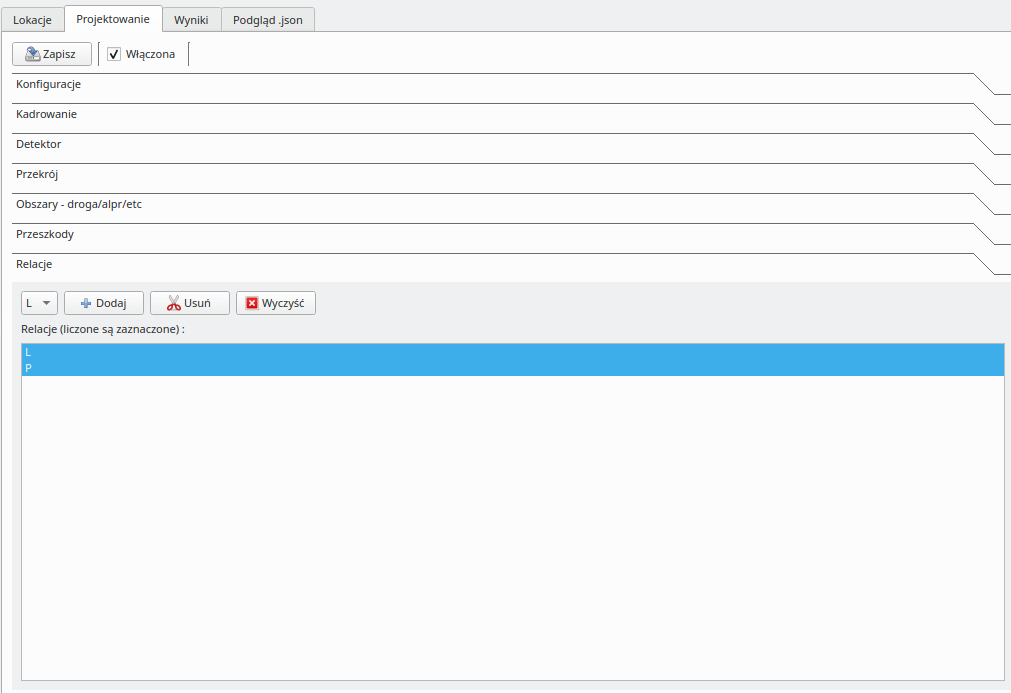
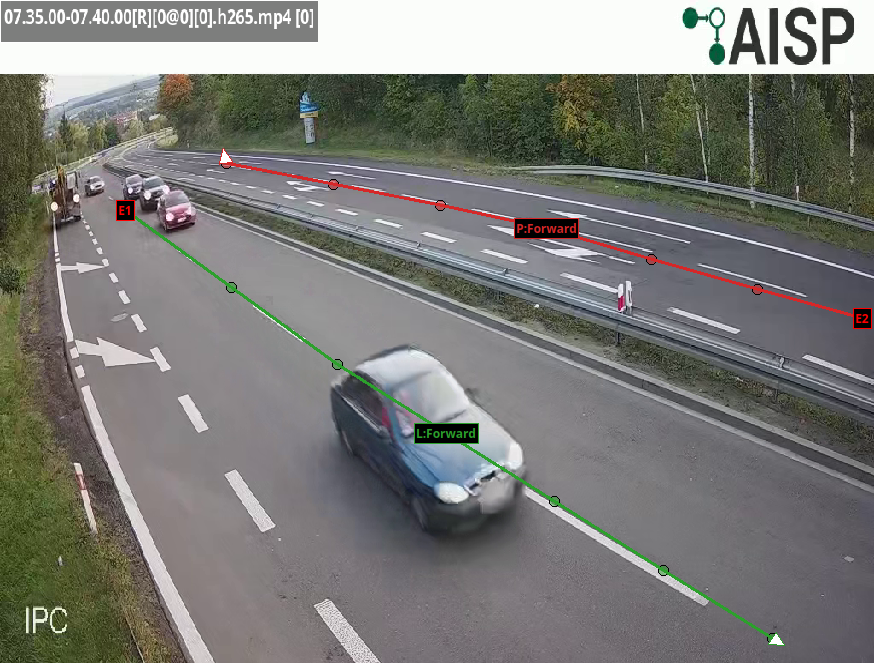
Go to the Design tab and the Relations sub-tab. Click Clear to delete the current relationship. Select L from the drop-down list, then click Add to start drawing. The left mouse button adds a new point. The right mouse button ends drawing. Draw the relations L according to the picture below. Then select P and draw the relations P in the same way.
Classification selection and results configuration
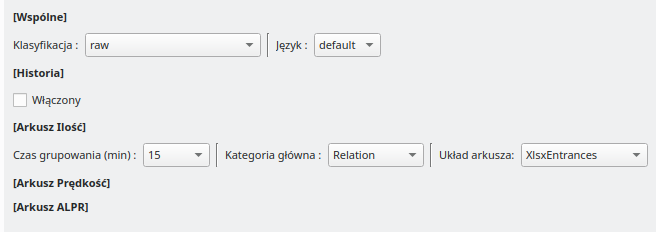
Go to the Results / Sheets subtab. Select the classification gpr, the clustering time 15 minutes, the main category Relation and the result sheet XlsxEntraces.
Reclassification of results
After changing the configuration, you can use the option to 'reclassify' the results. This is important when you have changed relations, cross-sections, areas or speed measurement section. In this case, although we have changed the relations, they are approximately identical to the configuration of the example and reclassification is not required.
Sheet generation
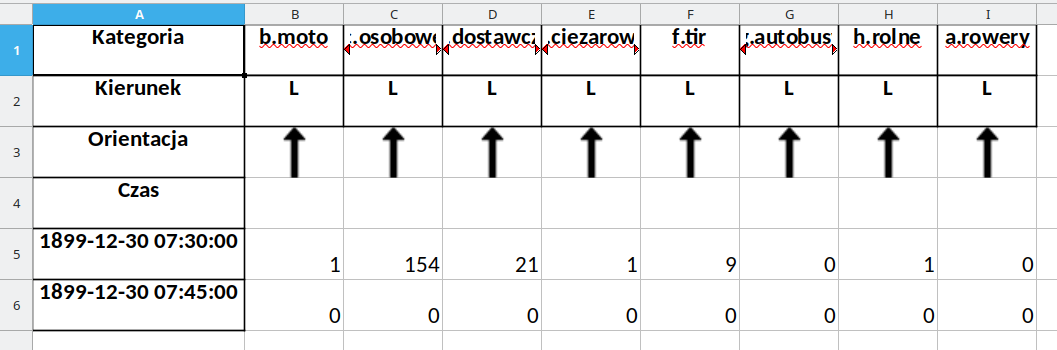
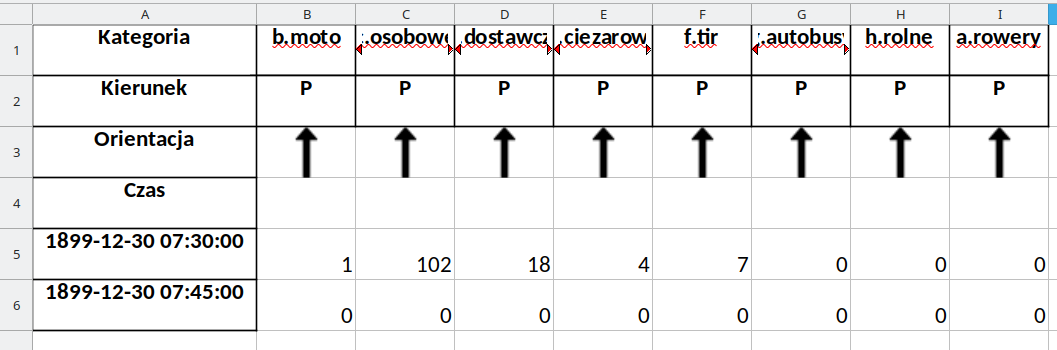
Go to the 'Results' tab and click the 'Report Sheets' button. After a while, new sheets will be generated. The Quantity.xlsx sheet should look like below.