Errata - how to manually correct the results?
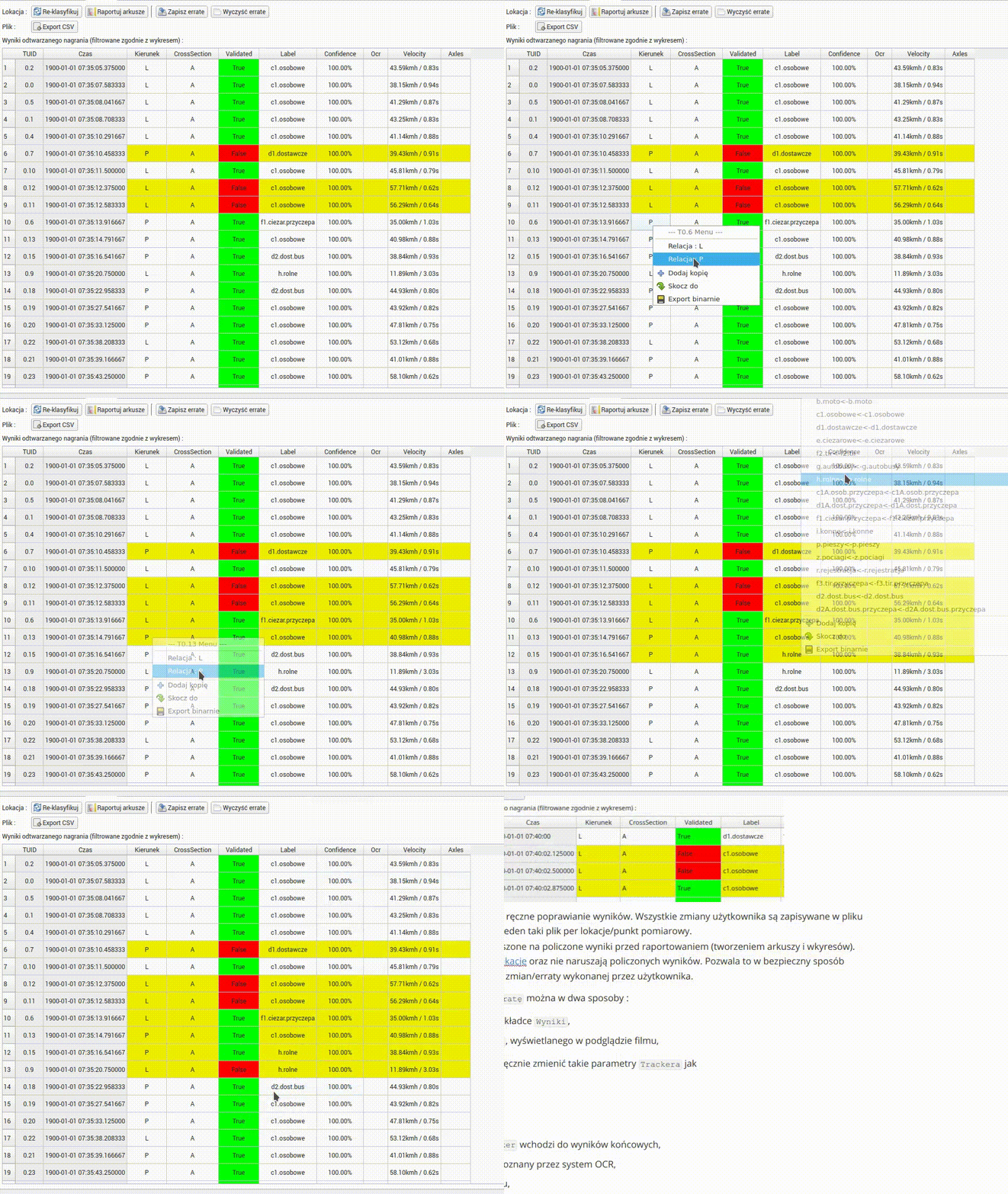
AITrackerGUI from version 1.60 allows you to manually correct the results. All user changes are saved in the errata.pickle file. The program creates only one such file per location/measuring point.
All user changes are applied to the counted results before reporting (creating sheets and charts). This means that they do not affect reclassification and do not affect the calculated results. This allows you to safely separate the originally calculated data from changes/errata made by the user.
You can create, add or modify Errata in two ways:
- By right-clicking on any field in the
Resultstab, - By right-clicking on the object of the
Trackerdisplayed in the video preview,
In the current version of the program, we can manually change such Tracker parameters as
- Direction,
- Cross-section,
- Category,
- Status
Validated- yes/no whetherTrackeris included in the final results, - OCR text - text that has been recognized by the OCR system,
- Axles - recognized number of vehicle axles,
Attention! Each manually changed row is highlighted in yellow to distinguish it from the results.
Change counted/not counted status Validated
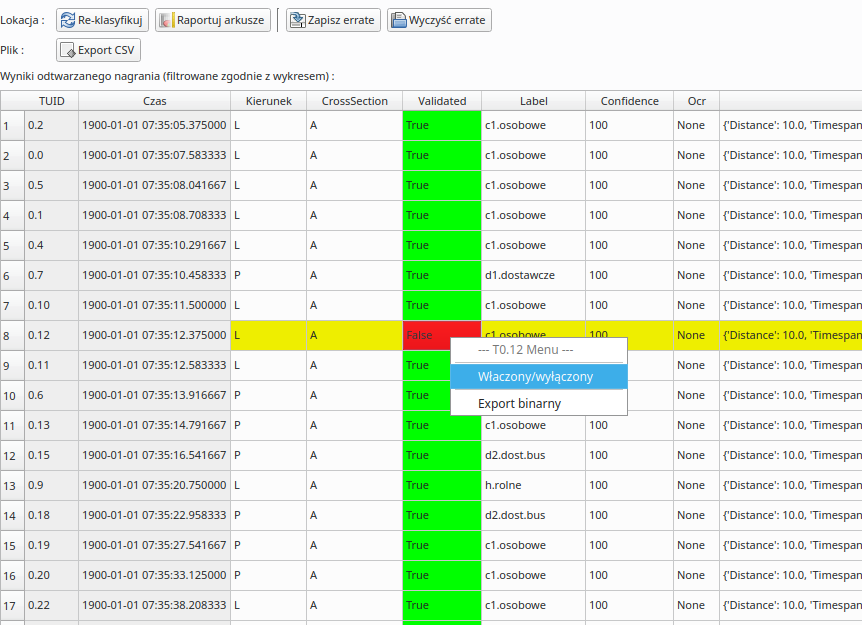
To change the counted/uncounted status of a single tracker, go to the 'Results' tab and then right-click in the row with the appropriate vehicle and the 'Validated' column.
Change counted/not counted status by clicking on an object in the preview.
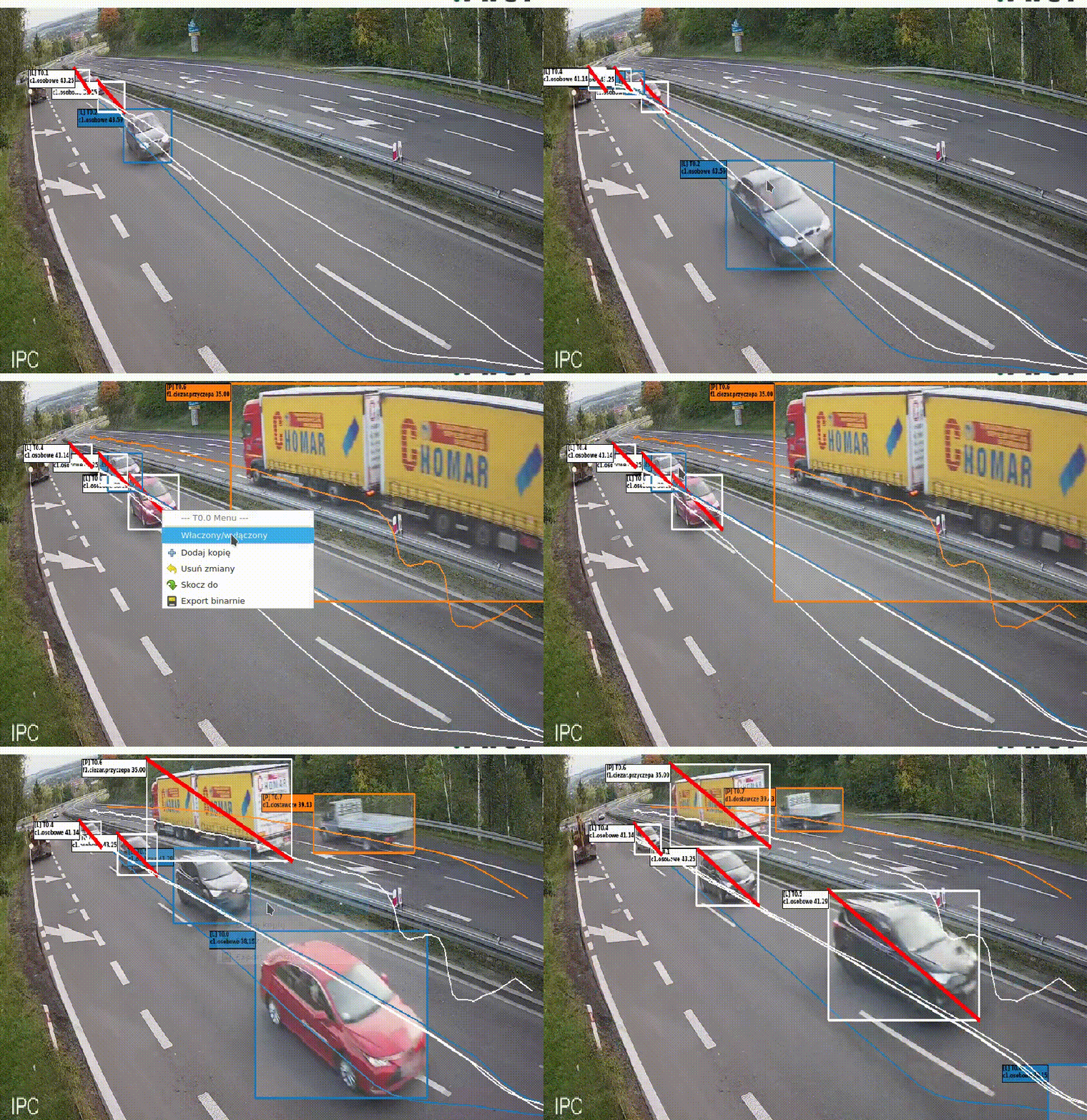
In the video preview window, Right-click inside the Tracker object. A context menu will then appear in which you can directly change the counted/uncounted state of the object.
Change direction/relationship of movement
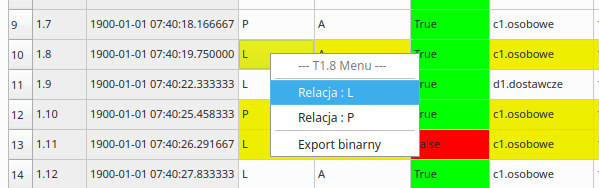
To change the counted/uncounted status of a single tracker, go to the "Results" tab and then click RMB in the row with the appropriate vehicle and in the "Direction" column.
Section change
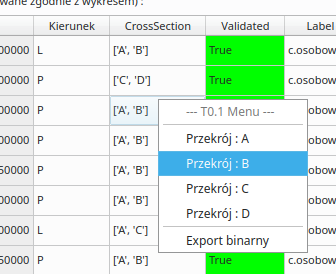
To change the counted/uncounted status of a single tracker, go to the 'Results' tab and then right-click on the row with the appropriate vehicle and the 'CrossSection' column.
Important! At this point, the ability to set several cross-sections for a given object is still missing!
Change the category of the object
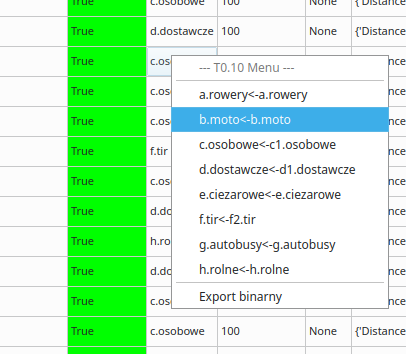
To change the counted/uncounted status of a single tracker, go to the 'Results' tab and then right-click in the row with the appropriate vehicle and in the 'Label' column. In the menu that will appear, each object category will consist of two texts classification category <- AI category.
Important! Changing the category/classification of an object changes its original classification (as seen by AI), not the target one (as the selected object classification).
OCR text change
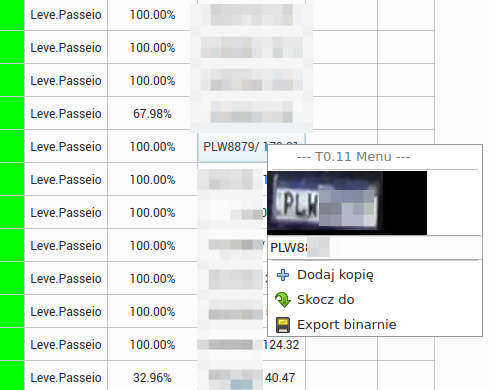
In the Results tab, click RMB on the field corresponding to Tracker and the Ocr column. We see a preview/saved OCR photo and an edit box where the text appears. We can edit and save the text.
Attention! Press Enter twice to save the OCR text!
Changing the number of vehicle axles
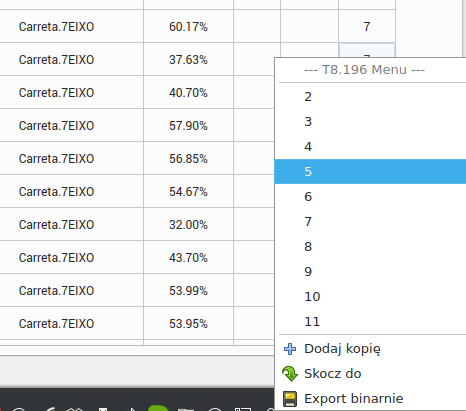
In the Results tab, click RMB on the field corresponding to Tracker and the Axles column. Then we choose a number between 2 and 11 axes.
Adding a copy of the object/tracker
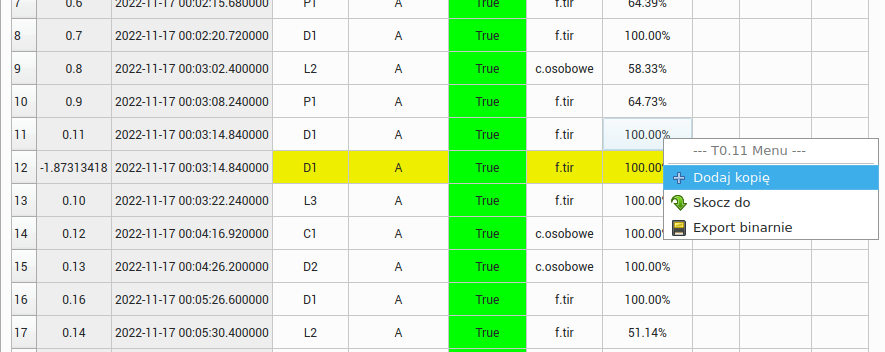
In the Results tab, click RMB on the field corresponding to Tracker. Select the 'Add a copy' option. A new row will be created with a unique TUID number.
Attention! The
TUIDnumber assigned to tracker copies varies. The first number is always -1 and the second is 8 digits and random.